
Clever Data Recovery 6.1 MAS Multilingual macOS
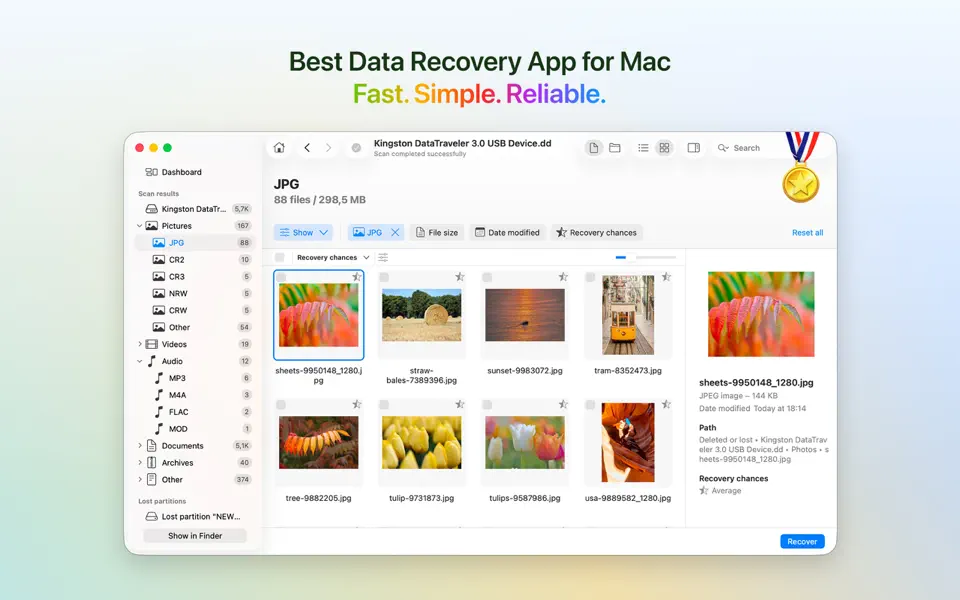
Clever Data Recovery helps you recover deleted files on your Mac – photos, videos, documents, and more – from internal drives, external hard drives, USB flash drives, and SD cards. Version 6 offers a new streamlined user interface that will help you navigate, preview, sort, and filter your recoverable data with ease.
Clever Data Recovery can recover your deleted pictures and photos, music, documents, applications, videos, notes, and other data. There are several data recovery algorithms running in a smart sequence within the software. “Quick Scan” and “Search for Lost Partitions” can recover files of any format. “Deep Scan” file recovery works on a lower level and analyzes disks as binary entities. It runs your hard drive recovery based on file signatures, thus original file names, locations and properties aren’t always recoverable.
Clever Data Recovery can recover deleted data from all major file systems, including APFS, HFS+, FAT32, NTFS, EXT, EXT4, and ExFAT, and can even work with formatted disk images. If your data is still physically present, the app can undelete it for you. It can also get your data back from byte-by-byte disk images in DMG, ISO, and IMG formats, as well as from NAS devices and Linux machines accessed over SSH.
Your lost data can be recovered from almost any internal or external media, including your Mac’s hard drive (excluding system partitions), any disk you can mount to your Mac, USB flash drives, cameras, memory cards, external hard drives, and other Macs connected in Target Disk Mode.
** How to create and recover from a disk image **
Clever Data Recovery uses uncompressed (byte-by-byte) disk images as the source for data recovery.
Here’s how you can create them really easily:
1. Run Disk Utility, it’s a standard macOS app.
2. Go to File > New > Disk Image from “YOUR DISK NAME”.
3. Choose “read-write” as vour Image format. Do not choose “Compressed” deleted data will not be copied if you do.
4. Set encryption to “none”
5. Save your disk image, and load it in Clever Data Recovery when done.
Compatibility: macOS 10.15 or later
Homepage https://apps.apple.com/us/app/clever-data-recovery/id431224317
Screenshots